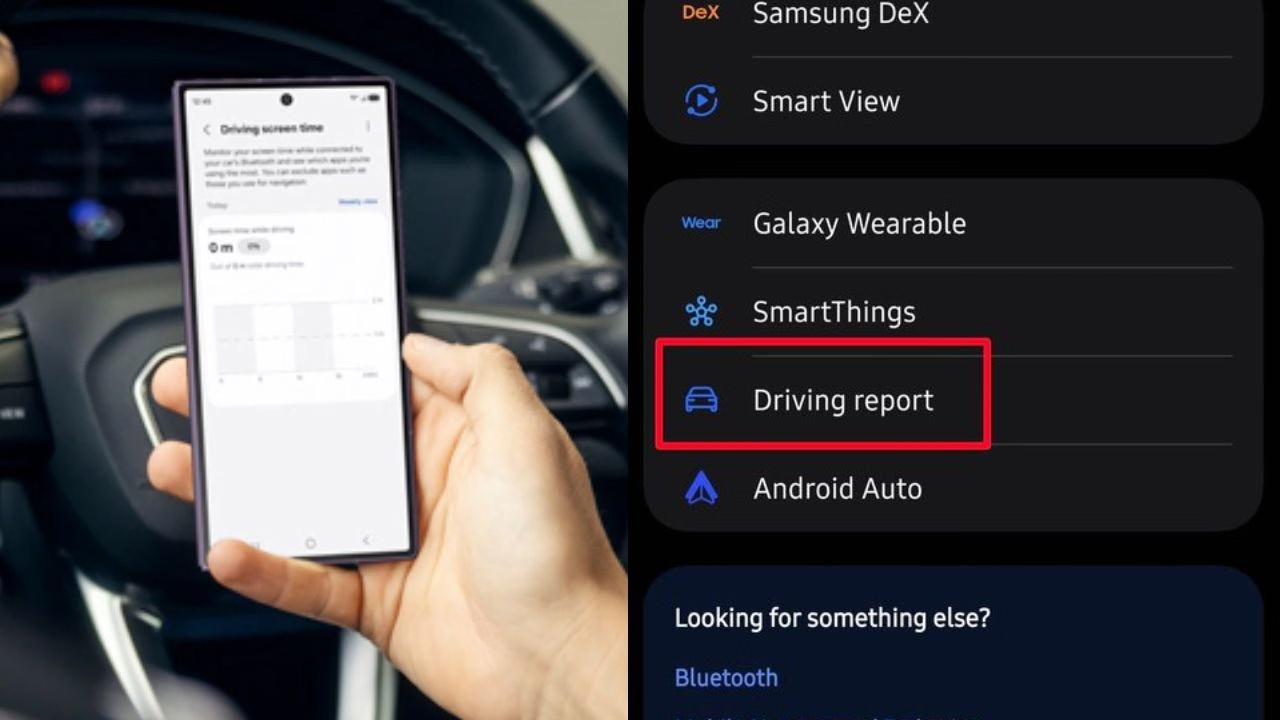
Samsung One UI 9 introduces a Driving Report feature that helps Galaxy users review their driving habits, trip history and speed patterns. The feature records details such as journey distance, duration, route, rapid acceleration, sudden braking and sharp turns, giving drivers a clearer picture of their driving behaviour.
The feature is designed to work in the background after setup, using the phone’s sensors and location data to record trips when it connects to a paired car’s Bluetooth system. It also offers a weekly summary of driving activity, helping users review patterns across multiple journeys.
Here is how Samsung’s Driving Report works, how to enable it, and what users should know about privacy before switching it on.
What Is the Driving Report Feature in Samsung One UI 9?
Samsung’s Driving Report is a built-in feature available on supported Galaxy devices running One UI 9. It keeps a record of car journeys and presents key trip information in an easy-to-review format.
Unlike a basic travel history, the feature also highlights certain driving events, including rapid acceleration, sudden deceleration and sharp turns. It can help users understand their driving patterns over time rather than simply showing where they have travelled.
The feature is not necessarily enabled by default, so users may need to activate it and grant the required permissions before it can record their journeys.
Availability may vary by Galaxy model and software version. Samsung’s official One UI 9 announcement does not provide a complete device-by-device list specifically for Driving Report.
What Information Does Samsung Driving Report Track?
Once configured, Driving Report can collect several types of information about a journey. These may include:
Trip distance: How far you travelled during a drive.
Journey duration: The time spent on the road.
Average and top speed: A summary of your speed during the trip.
Route history: A map showing the journey.
Rapid acceleration and sudden braking: Events detected through the phone’s sensors.
Sharp turns: Certain turning movements identified by the system.
Phone usage: Information about phone activity during a recorded trip.
The feature can also display a speed graph and highlight particular sections of a route where certain driving events were detected. This helps users review individual journeys and compare them with previous trips.
However, sensor-based readings should be treated as indicators rather than a definitive assessment of driving skill. Traffic, road surfaces, obstacles and other road users can all affect braking and acceleration.
How Does Driving Report Work With Car Bluetooth?
One of the useful aspects of the feature is its automatic trip-recording option.
After users complete the initial setup and pair their vehicle, Driving Report can start recording when the Galaxy phone connects to the car’s Bluetooth system, depending on the device and settings.
The feature does not necessarily require Android Auto or Apple CarPlay, although a compatible phone, software version, Bluetooth connection and the necessary permissions are required.
After a trip, users can open Driving Report to review the recorded journey, inspect the route and examine driving-related events. Previous records can also be reviewed, and individual trips may be deleted.
Samsung Driving Report Also Offers Weekly Driving Summaries
In addition to individual trip records, Driving Report can provide a weekly overview of driving activity. This allows users to look for recurring patterns across several journeys.
For example, a driver may notice repeated instances of sudden deceleration or frequent periods of slow-moving traffic. Reviewing these patterns could encourage smoother acceleration, more consistent braking and greater awareness of driving habits.
The feature may be particularly useful for new drivers who want to reflect on their journeys. However, it should not be treated as a formal driving test, an official safety rating or a substitute for professional driving instruction
A sudden braking event, for example, does not automatically mean the driver made a mistake. Braking sharply may be necessary to avoid a collision or respond to an unexpected road hazard.
How to Enable Driving Report on a Samsung Galaxy Phone
If your Galaxy device supports the feature, follow these steps to check whether it is available:
Open Settings on your Samsung Galaxy phone.
Select Connected devices.
Look for Driving Report and open it.
Follow the on-screen setup instructions.
Grant the permissions needed for the feature to function.
Open the vehicle settings and select your paired car.
If your car is not listed, pair it with your phone through Bluetooth first.
Review the automatic recording and privacy settings before enabling them.
The precise menu names and available options may differ by model or software version. If Driving Report does not appear, check whether your phone has received a compatible One UI 9 update.
Some versions may also offer location-related options that let users identify places such as home or work for reviewing journey information.
Samsung Driving Report Privacy: What Should Users Know?
Driving Report can be useful, but it also raises important privacy questions because journey records may reveal where someone travels, when they leave and how often they visit particular places.
Before enabling the feature, users should consider the following points.
1. Location access is important
Recording routes and displaying trips on a map requires location information. Depending on the permissions and configuration, the feature may need location access while operating in the background.
Users should review the location permission shown in their phone’s settings and understand when access is allowed. Background location access can have privacy and battery-life implications.
2. Trip history can reveal personal routines
A detailed journey history may expose home and work locations, regular appointments and travel patterns. Anyone with access to an unlocked phone or an account containing those records could potentially learn sensitive information.
Use the available screen-lock and account-security options, and delete trip records you no longer want to retain.
3. Check how the data is stored and managed
Before using Driving Report, review Samsung’s applicable privacy notices, account settings and the permissions requested by the feature.
Do not assume that driving records are automatically shared with insurance companies or other third parties. Equally, do not assume that every detail remains exclusively on the phone without checking the applicable service terms and privacy documentation.
If data sharing is a concern, review the available controls and avoid enabling permissions you are not comfortable granting.
Could Google Maps Get a Similar Driving Report Feature?
Google Maps already offers travel-history tools through Timeline, allowing users to review places and journeys when the relevant settings are enabled.
Samsung’s Driving Report focuses more specifically on driving-related information, including acceleration, deceleration, turns and speed patterns. This gives it a different purpose from a conventional navigation app or travel-history feature.
Google could introduce more detailed driving analytics in the future, but there is currently no confirmed announcement that Google Maps will add a feature identical to Samsung’s Driving Report.
For now, the two experiences should not be treated as direct replacements: Google Maps primarily supports navigation and travel-history features, while Samsung Driving Report is designed to help compatible Galaxy users review aspects of their driving behaviour.
Samsung One UI 9 Driving Report: Key Takeaway
Samsung’s Driving Report gives supported Galaxy users another way to review their trips and identify patterns in their driving. Automatic recording, route maps, speed information and weekly summaries may help drivers become more aware of their habits.
However, the feature’s availability depends on the device and software version, and its sensor-based observations cannot independently determine whether every driving manoeuvre was safe or unsafe.
Users should check compatibility, review location permissions and understand how their trip data is managed before enabling the feature.


Vivo S2 FE 5G Goes on Sale With 10,000mAh Battery: Check Price and Offers
Vivo S2 FE 5G is now on sale in India with a massive 10,000mAh battery, a 120Hz AMOLED display an
Sanju Samson on India’s Defeat: Tilak Varma’s Wicket Changed the Game; Arshdeep Injury Update
India wicketkeeper-batter Sanju Samson has identified Tilak Varma’s dismissal as the turnin
Yes Bank Shares Fall 14% After Supreme Court Ruling on ₹8,415 Crore AT-1 Bonds
Yes Bank shares came under heavy selling pressure on Thursday, October 15, after the Supreme Cour
Smriti Mandhana on Brink of History: 133 Runs Away From Unprecedented 5,000 T20I Milestone
India women’s cricket captain Smriti Mandhana is on the verge of creating history as India
Jio IPO vs Paras Healthcare IPO: Which Has the Higher GMP and Listing Gain Potential?
The primary market is set for a relatively quieter week, with two mainboard initial public offeri
Shares of PC Jeweller surged nearly 11% in morning trade on Monday, October 19, 2026, touching a
Jio IPO to Be India’s Biggest Ever at ₹30,213 Crore, Surpassing Hyundai
Jio Platforms Limited, the digital and telecom business of Reliance Industries Limited (RIL), has
Para Asian Games 2026: Sumit Antil, Avani Lekhara Lead India’s Medal Hopes
The Asian Para Games 2026 are underway in Aichi-Nagoya, Japan, with India aiming to build on its
Samsung One UI 9.0 Update: Check New Features and How to Download on Galaxy Phones
Samsung Galaxy S23 series users are among those eligible for the company’s latest One UI 9
PM Modi Meets Asian Games 2026 Medal Winners: Says Athletes’ Success Is India’s Success
Prime Minister Narendra Modi met India’s medal-winning athletes from the Asian Games 2026 a